AltGraph v.1.0.33 – A 3D Isometric Altimetry & Radar extension for Karoo

Hi everyone,
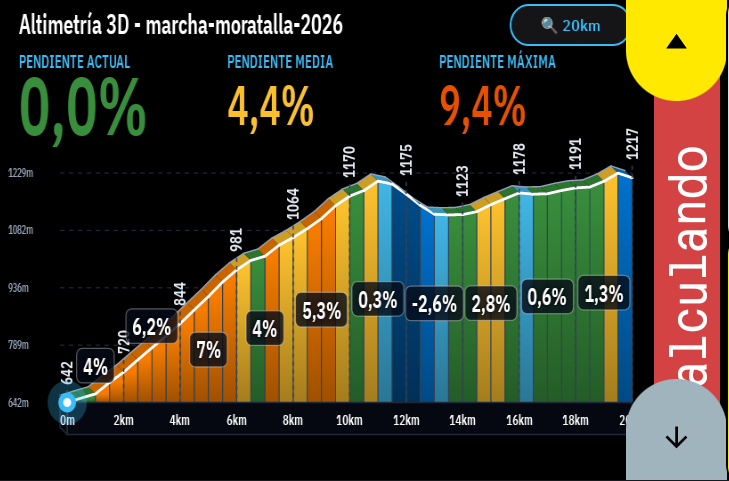
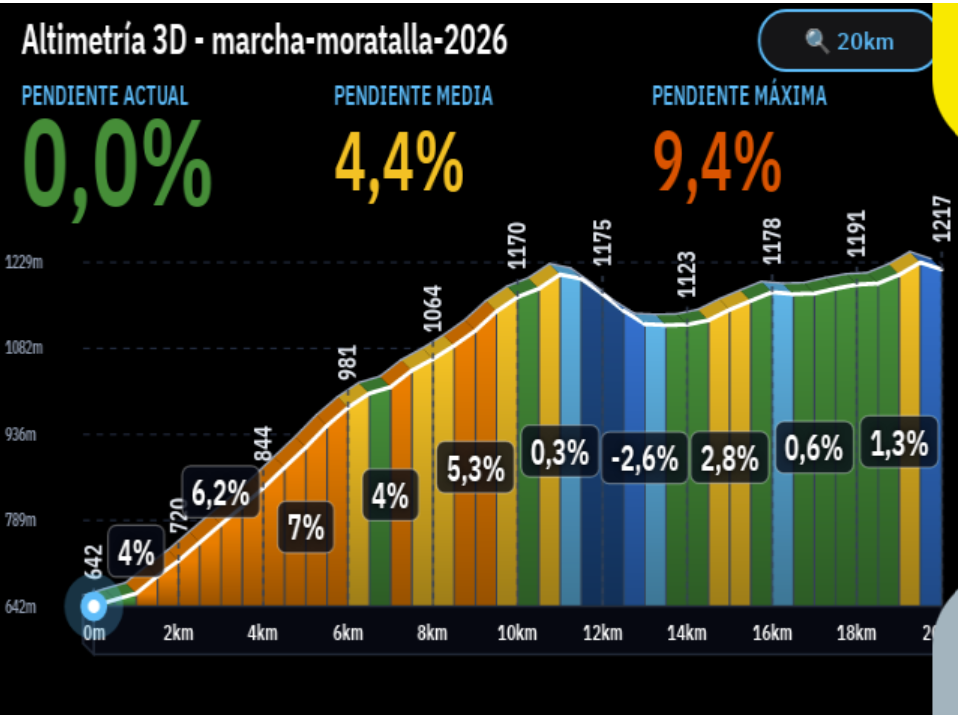
Sharing AltGraph, a highly visual climb and route overlay extension that completely reimagines how you see elevation on your Karoo.
Repo & releases: https://github.com/DAVOE75/ALTGRAPH
Why I built it: Two main frustrations with current elevation screens:
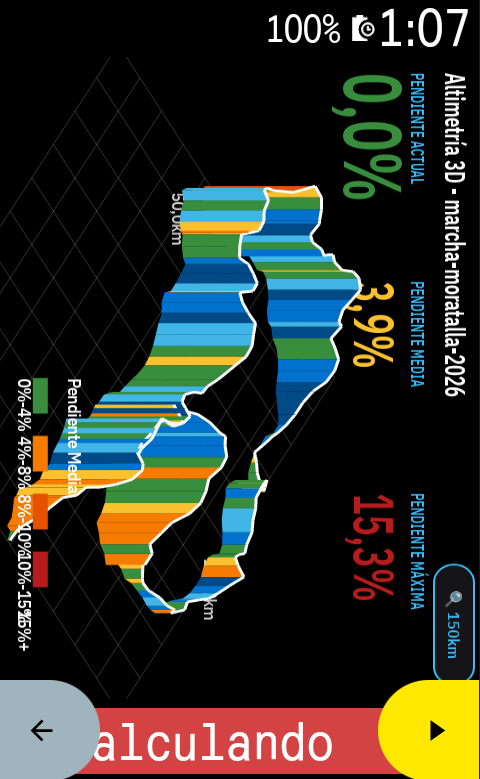
- Lack of spatial awareness and ugly 2D profiles: Traditional 2D flat profiles are okay, but they don't give you a real sense of the mountain. I wanted something spectacular. AltGraph introduces a beautiful 3D Isometric perspective that makes the upcoming climbs look and feel like real terrain.
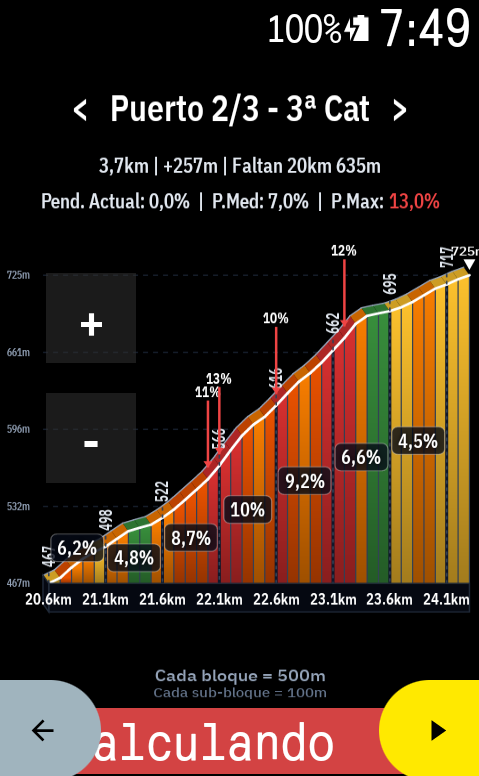
- You are forced to look at what you don't need: Sometimes you want to look ahead at the next ramp without zooming out the whole route. I built dedicated interactive touch buttons for fine zooming (down to 50m blocks!) and predictive horizontal panning (< / >), so you can freely slide the graph left or right to see what's coming, independently of your zoom scale.
What it does:
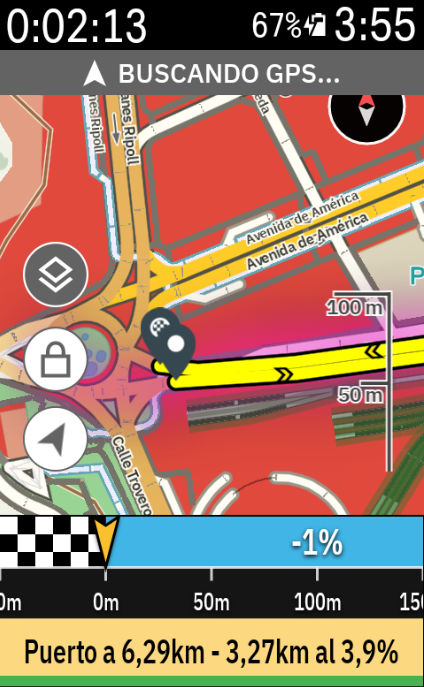
- Altimetry Radar Mode: A gorgeous view that overlays the 3D climbing relief directly over your navigation map. See your route and the elevation of what's ahead simultaneously on the same screen.
- Real-Time Cyclist Tracking: A live marker smoothly advances through the profile and gradient colors, giving you immediate feedback on where you are relative to the current ramp.
- Native Landscape Mode: Full support for horizontally mounted Karoos. Touch buttons and graphs automatically re-orient ergonomically to your visual field.
- Training Zones Bar: A dynamic 7-zone colored bar at the bottom of the screen that reacts to your live Power (Watts) or Heart Rate data while you climb.
- "Smart Zoom" Override: The app can auto-adjust the zoom based on your current gradient, but the moment you touch the [+] or [-] buttons, you take 100% manual control.
I would love it if you could install the v1.0.0 APK, take it for a ride, and give some feedback!
Hola a todos,
Os comparto AltGraph, una extensión super visual que reimagina por completo cómo vemos la altimetría y las subidas en nuestros Karoo.
Repo y descargas: https://github.com/DAVOE75/ALTGRAPH
Por qué la he creado: Principalmente por dos frustraciones con las pantallas de perfil actuales:
- Falta de perspectiva y perfiles 2D aburridos: Los perfiles planos tradicionales cumplen su función, pero no te dan una sensación real de la montaña. Quería algo espectacular. AltGraph introduce una perspectiva Isométrica 3D preciosa que hace que el relieve cobre vida.
- Te obligan a ver lo que no necesitas: A veces quieres ver cómo de dura es la siguiente rampa sin tener que alejar el zoom de toda la ruta. He añadido botones táctiles dedicados para tener un zoom súper preciso (¡hasta bloques de 50 metros!) y desplazamiento horizontal (< / >) predictivo. Puedes arrastrar la gráfica libremente a izquierda y derecha para ver qué te espera más adelante sin alterar la escala.
Qué hace exactamente:
- Modo Radar Altimétrico: Una vista brutal que superpone el relieve 3D directamente sobre el mapa de navegación. Puedes ver por dónde vas en el mapa y la altimetría que te viene encima en una sola pantalla.
- Ciclista en Tiempo Real: Tu posición avanza fluidamente sobre el perfil gráfico y sus colores de pendiente, para que sepas visualmente en qué punto de la rampa estás sufriendo.
- Modo Apaisado (Landscape) Nativo: Si llevas el Karoo en horizontal, la interfaz, los botones y la gráfica se re-orientan automáticamente para adaptarse de forma ergonómica a tu campo de visión.
- Barra de Zonas de Entrenamiento: Una barra dinámica de 7 colores en la parte inferior que reacciona en tiempo real a tus Vatios de potencia o Frecuencia Cardíaca.
- Control Manual Absoluto: La app tiene un "Zoom Inteligente" que se adapta a la pendiente, pero en el momento que tocas el [+] o el [-], tomas el 100% del control manual.
¡Me encantaría que probaseis el APK de la v1.0.0 en vuestras próximas salidas y me deis vuestro feedback!
-
A major update (v1.0.85) for AltGraph is now live, bringing exciting new features, enhanced visual design, and full multi-language translations across the board.
What's New in v1.0.85:
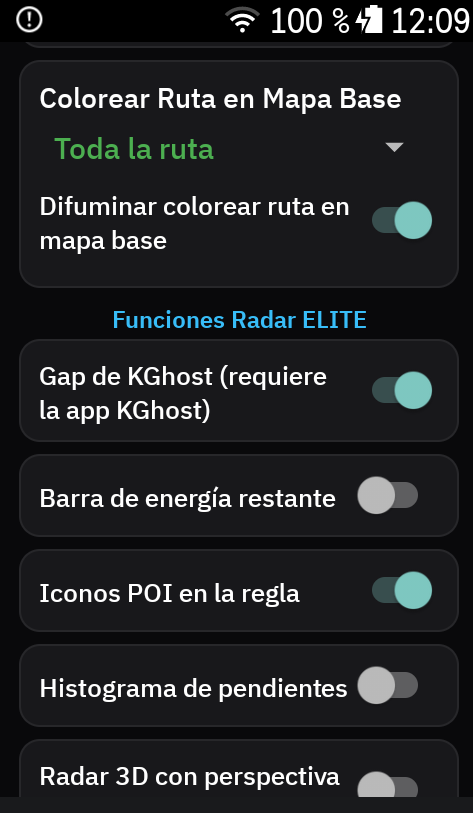
1. Live KGhost Integration (Altimetry Radar Alert Bar)
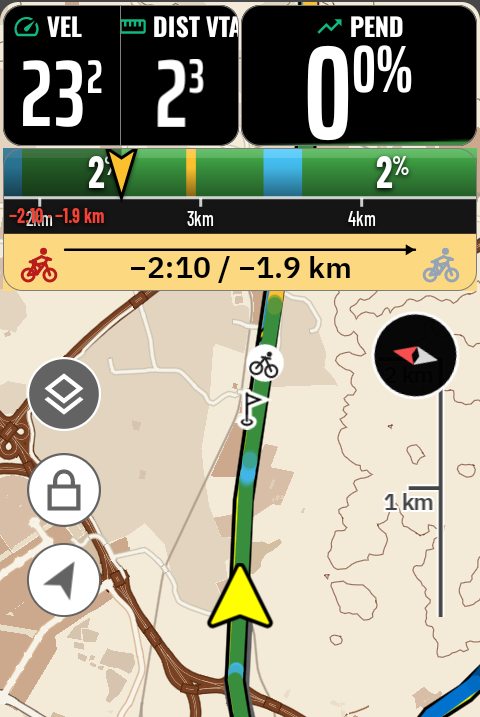
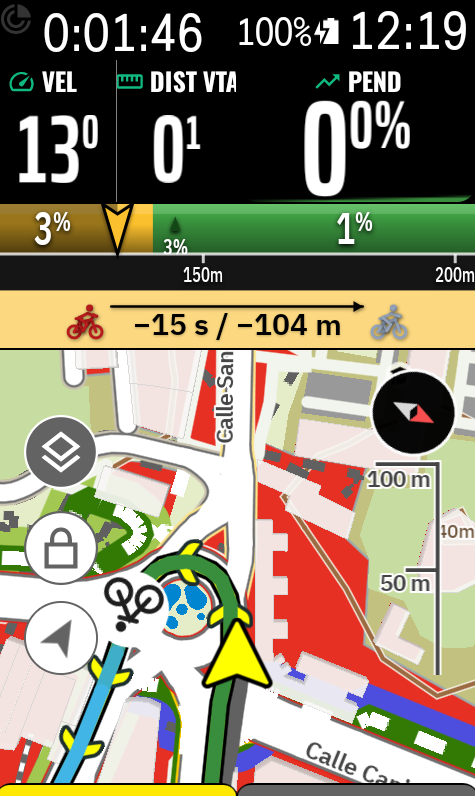
In the Radar Elite settings, you can now toggle the KGhost Gap! When enabled, a visual head-to-head racing widget appears right on your Radar alert bar:
-
Dual Vector Cyclists: Your rider in burgundy red and the virtual partner in metallic light grey, with subtle drop-shadows for high readability in full sunlight.
-
Dynamic Leadership Arrow: The leading rider visually takes the front (on the right in horizontal mode, or top in vertical mode) connected by a leadership arrow.
-
Live Metrics: Shows precise real-time gap in time and distance (e.g.,
-15 s / -104 mor+4:46 / +3.7 km). -
Smart Alternation: Smoothly cycles every 4 seconds between the KGhost widget and climb/wall tactical alerts so you don't miss upcoming steep ramps.
A huge thank you to the developer of KGhost for their collaboration and support! Please note that having the KGhost companion app installed on your Karoo is required to feed the ghost gap data.
2. New Typography Choices
We have added Landasans and Barlow Condensed to the font family selector under the Style tab, offering clean, ultra-readable metrics suited for any cockpit layout.
3. Clean & Professional UI
The entire settings panel and data field headers have been decluttered of emojis, replacing them with a streamlined, professional design.
4. 100% Complete Multi-Language Support
Full native translation coverage across all 192 keys with zero missing strings in:
-
English
-
Spanish
-
French
-
German
-
Italian
-
Portuguese
Download & Release Notes
-
GitHub Repository: https://github.com/DAVOE75/ALTGRAPH
-
Latest Release (.apk): AltGraph v1.0.85 Release
-
KGhost Extension: https://github.com/lockevod/KGhost
Feedback and suggestions are always welcome. Enjoy your rides!
-
-
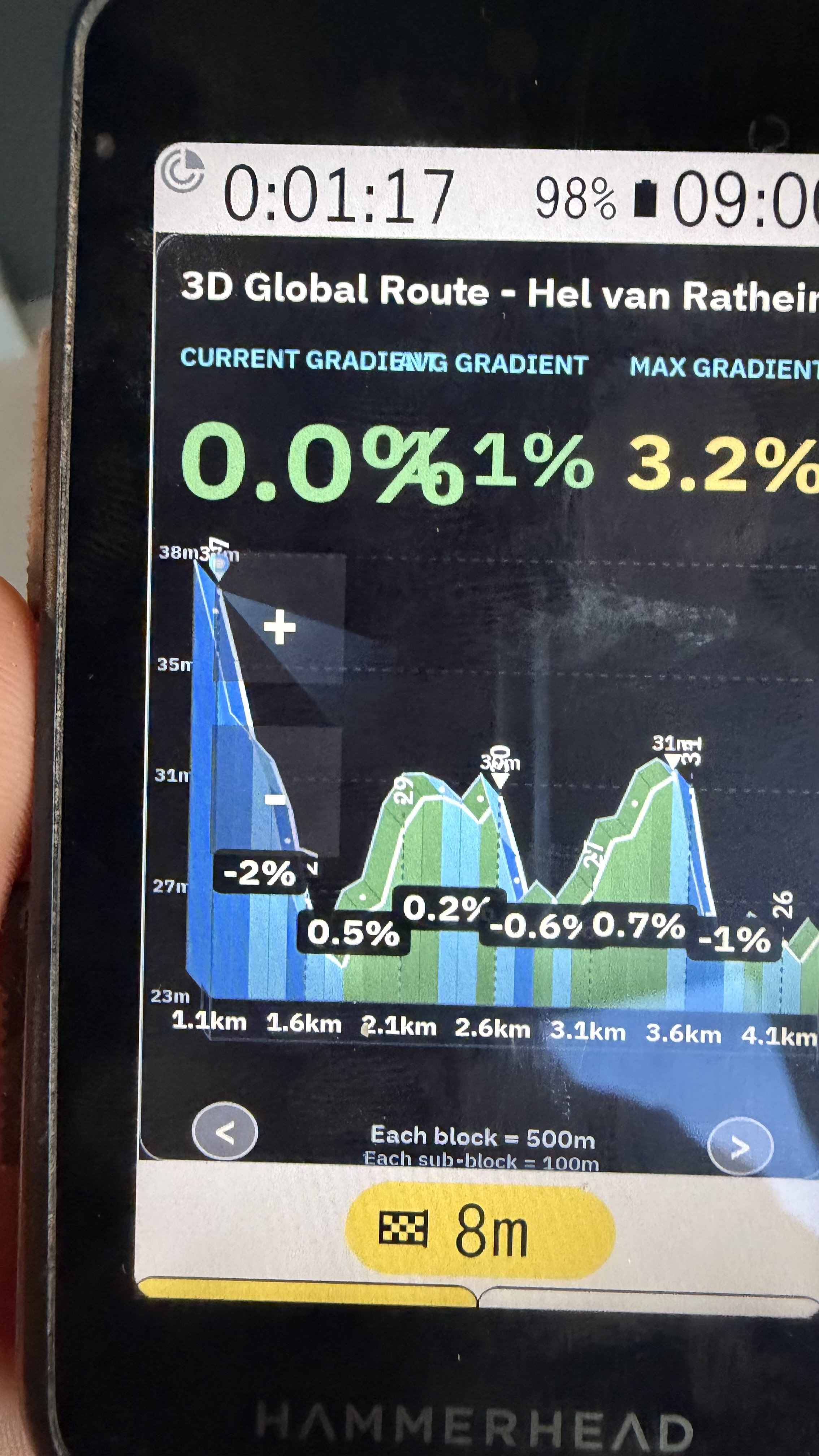
Hi! Thank you so much for the great feedback and the screenshot!
We have just published v1.1.0 addressing all your points:
-
Bigger & Higher Scroll Arrows (
</>):- We made the arrow circles significantly larger and raised them slightly higher above the bottom edge of the screen so they don't sit right against the Karoo bezel.
- The invisible touch target area was also expanded generously, making them much easier to tap while riding or wearing gloves.
-
Fixed Header Overlap:
- The issue where CURRENT GRADIENT (
0.0%) overlapped with AVG GRADIENT has been completely resolved with dynamic, auto-scaling column widths.
- The issue where CURRENT GRADIENT (
-
Option to Remove Header / Maximize 3D Profile:
- You can now toggle the entire top header on or off! In the 3D tab, simply turn off "Show 3D Header Statistics (Route Name, Gradients)". The route name and top gradient metrics will be hidden, and the 3D mountain profile will automatically stretch vertically to fill the entire screen for a distraction-free, panoramic view.
Pro Tips for the best visual experience:
- Rotate Graph 90° (Landscape Mode): In the 3D tab, enable "Rotate Graph 90° Clockwise". This allows you to view the 3D elevation profile in widescreen landscape across your Karoo, which gives you much more horizontal distance resolution and an incredible panoramic perspective of the climbs ahead.
- Condensed Font: In the Style tab, try setting the typography to Condensed and the size to Large. It makes all the grade capsules and numbers super crisp and easy to read at a quick glance on the bike.
The OTA update v1.1.0 is already live and should prompt on your Karoo, or you can grab it directly from GitHub Releases. Let us know how it feels on your next ride!
-
Bigger & Higher Scroll Arrows (
-

Thanks for the heads up for the new release. Installed and looking good.
This may be an "impossible" but would the
</> arrowsbe able to move to the top of the graph? They sort of overlap the graph in its current potision. I guess if they go to the top it may overlap something else? -
Glad to hear it's looking good!
Nothing is impossible! We actually implemented exactly that in the latest update:
In the 3D Settings Panel (app settings), you'll find a new option: "Pan Buttons Position" / "Posición de flechas de avance" with two choices:
- Bottom (Default): Keeps them in their original position at the bottom edge.
-
Top: Moves the
<and>arrow controls to the top of the 3D elevation profile view.
When set to Top, both the touch buttons and the on-screen indicators are relocated to the upper zone so they never overlap the terrain or the elevation profile at the bottom.
(Note: In the individual Climb Viewer, they remain fixed at the bottom to avoid interfering with the climb title and category header).
Update to version 1.1.3 and give it a try—you can switch between both positions anytime depending on your screen layout preferences!
-
Hi! No need to uninstall or reinstall at all. Everything is working as intended, and here is what is happening:
1. Why the lateral arrows (< and >) appear to do nothing:
- In the 3D Elevation Profile, the arrows are designed for scrolling (panning) forward and backward along the route. If you are zoomed out to the full route, or if you don't have an active navigation route loaded (e.g. testing stationary at home), the view is already displaying the entire route from start to finish, so there is no extra distance to pan into.
- In the Climb Viewer:
- The top arrows (◀ and ▶) switch between different climbs on your route (e.g. Climb 1/2 to Climb 2/2). If your route only has 1 climb (or no route loaded), there are no other climbs to cycle through.
- The side arrows (< and >) are for scrolling along a climb only when you are zoomed in. By default, the viewer fits 100% of the entire climb onto the screen, so lateral scrolling is locked until you zoom in.
2. Why the minus (-) zoomed out but the plus (+) seemed to do nothing:
- When you tap the minus (-) icon, the viewing distance increases in large steps (up to the total route distance or max range).
- If you zoomed out multiple times, the viewing window expanded to the full route length. When you tap the plus (+) icon, it reduces the window step-by-step, but as long as the requested window is larger than the actual length of your route, the graph will continue to fit the entire route on screen.
- Quick fix: Tap the plus (+) icon a few more times until the window drops below your route distance, or simply open the AltGraph app from your Karoo app drawer and adjust the "3D Lookahead" (Visión hacia adelante) back to your preferred default (e.g., 350 m, 500 m, or 1000 m).
Make sure to update to the latest release (v1.1.5), which includes instant touch response and updated controls. Let me know if that clears it up
-
Updated to v1.1.5.
Thanks for quick turn arounds.
I got to understand the zoom in and out now. The problem I had is that the zoom in isn't really happing when you press the icon. The response happens a bit under the icon so that means it is not aligned 100% with the icon graphic.
May I suggest to give the option of moving these ones to the top of the graph. There's plenty of empty space between the top arrows (◀ and ▶)The top arrows (◀ and ▶) still not working for me.
This extension is brilliant by the way. Great potential.
-
Hi,
Thank you very much for your feedback and kind words. We have addressed every single point you raised in version 1.1.6:
- Top arrows (◀ and ▶) explanation: The reason the arrows appeared to do nothing on your test route is that the route only had a single climb. Tapping the arrows cycled between climb 1 of 1, so the display remained on the same climb, giving the impression that the buttons were not responding. In version 1.1.6:
- If a route has only one climb, the navigation arrows are now completely hidden so there is no confusion.
- If you zoom in on a single climb, the arrows automatically activate and allow you to pan back and forth along the zoomed profile.
- If your route contains multiple climbs, the arrows switch between each mountain pass.
-
Zoom button touch alignment: In rotated landscape mode, the touch bounding box had a slight offset caused by container margins and rotation transforms. We resolved this by expanding the button hit targets to 52dp x 52dp and removing container padding, ensuring that 100% of the visible icon matches the touch registration area accurately.
-
Moving zoom buttons to the top header (your suggestion): We loved your idea and implemented it directly in this release. By default in version 1.1.6, the zoom buttons (+ and -) are now placed in the top header where there is plenty of empty space, keeping the elevation profile and gradient bars completely clear and visible. You can also toggle this in Settings ("Zoom Controls at Top") if you ever want them in the side position.
-
Zoom button order in landscape: In the side position, the plus (+) button is now placed above the minus (-) button to match natural landscape reading orientation.
Update to version 1.1.6 and let us know how it feels on your next ride. Thank you again for helping us improve the extension.
-
Good work there unfortunately I can't get the zoom buttons to go over the graph. Also the arrows still there so not sure if they are mean to? Perhaps you could offer the option to remove those as well?
Here are some photos of my Karoo.
https://ibb.co/PvJKSLB0
https://ibb.co/wZQfL916
https://ibb.co/tpYTc8gN
https://ibb.co/SDLSgmqZ
https://ibb.co/N8dC4GP

Please sign in to leave a comment.
Comments
13 comments